Annotation and Redaction in Documents
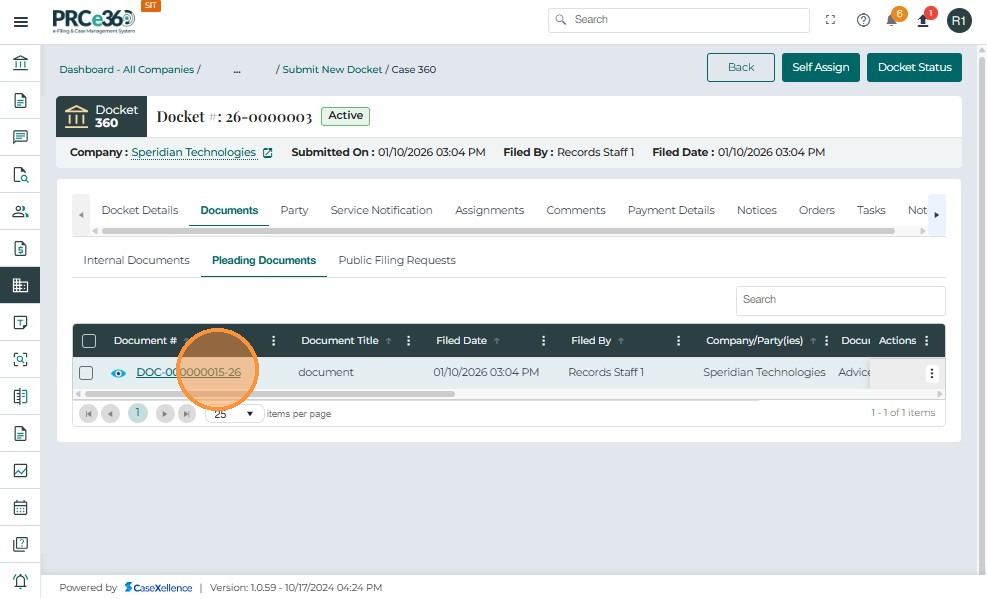
Navigate to Case 360. In the Documents tab, navigate to the Pleading Documents tab.
Click the Document ID.
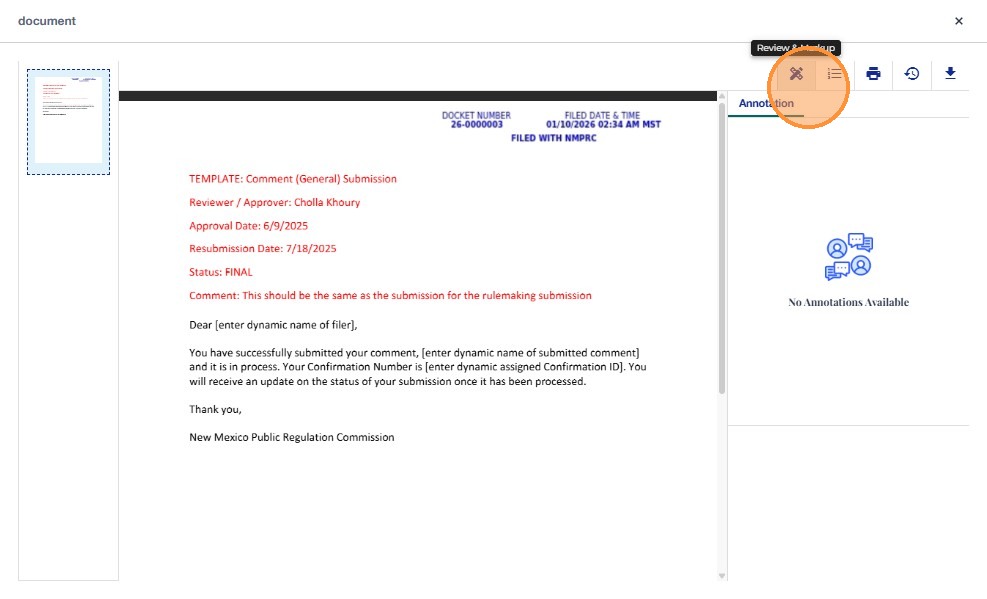
Upon clicking, the Document viewer will open and you can view the contents of the document as well as several options such as Review and Markup, Properties, History, and Download.
Annotation
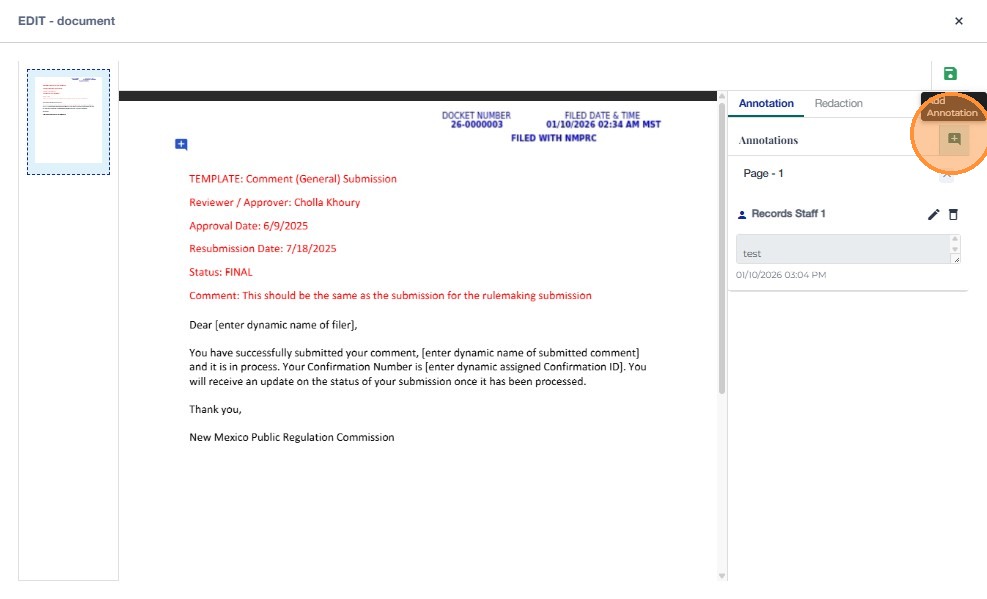
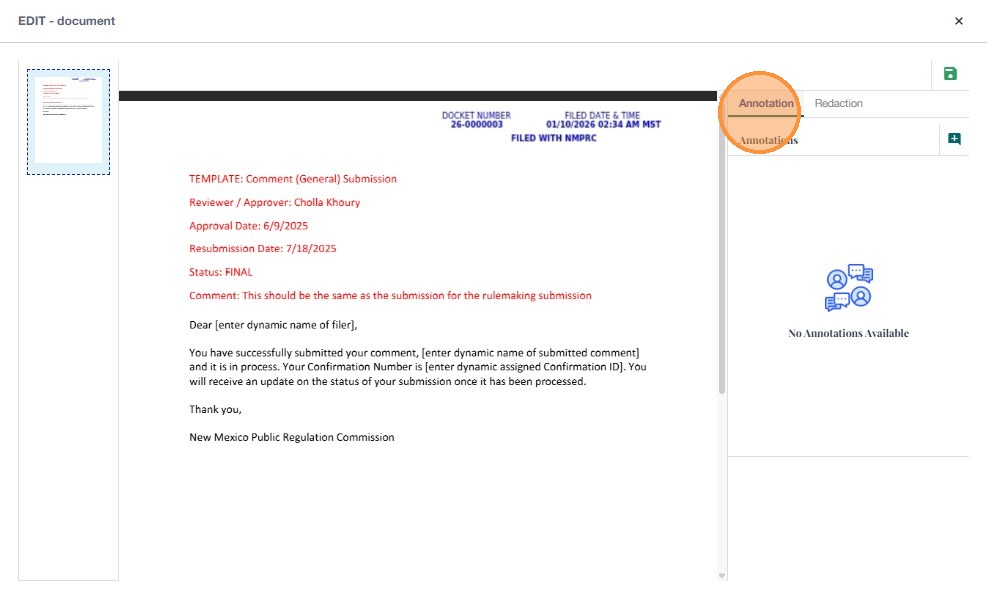
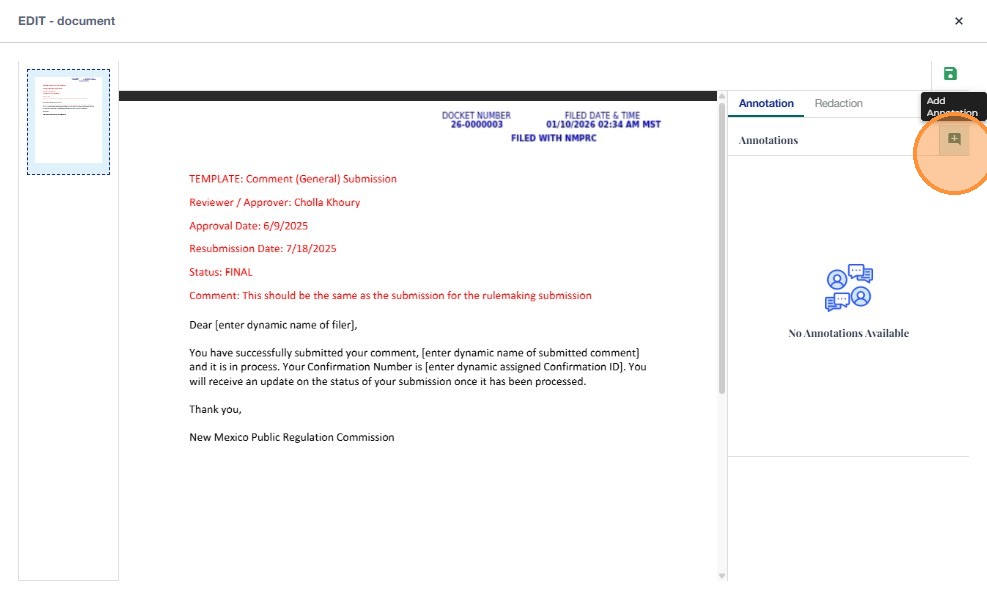
Click the Review and Markup button and you will see two tabs: Annotation and Redaction. Click the Add Annotation (+) button to add an annotation.
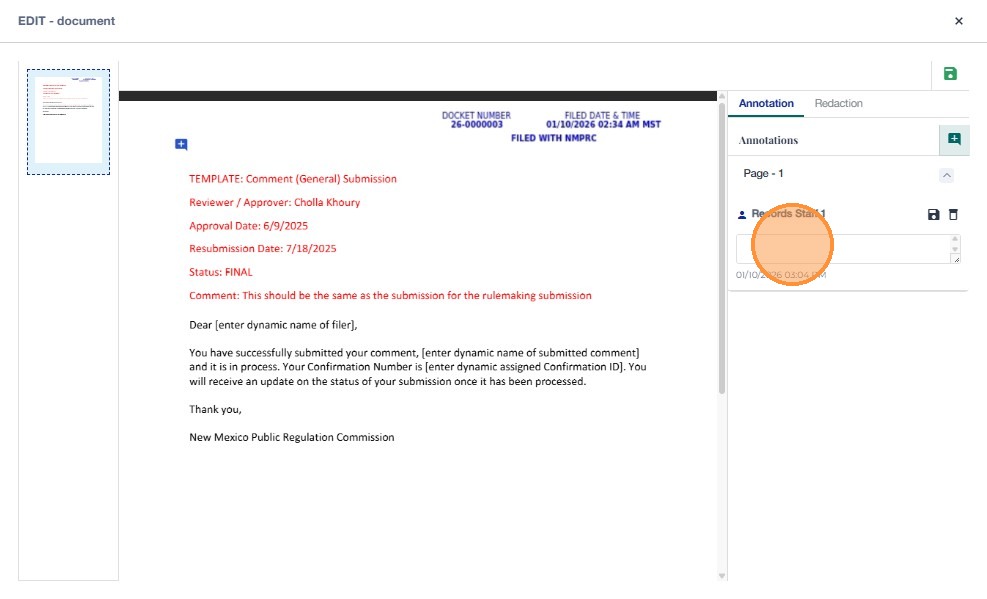
Drag the annotation symbol onto the document where you wish to place it.
Save, Edit, or Delete Annotation
Save
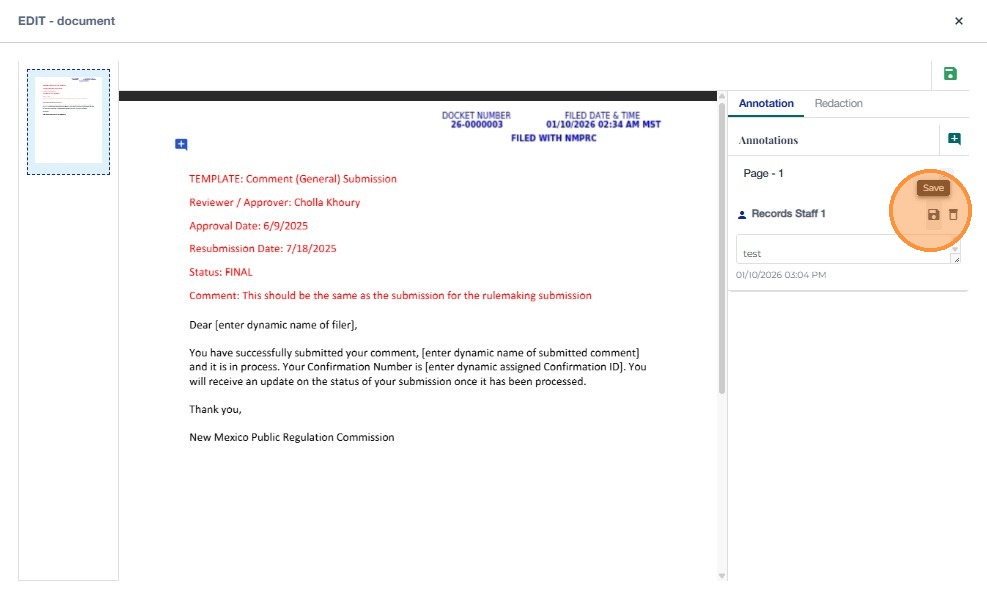
After dragging the annotation symbol, write the annotation in the field and click the Save button.
Edit
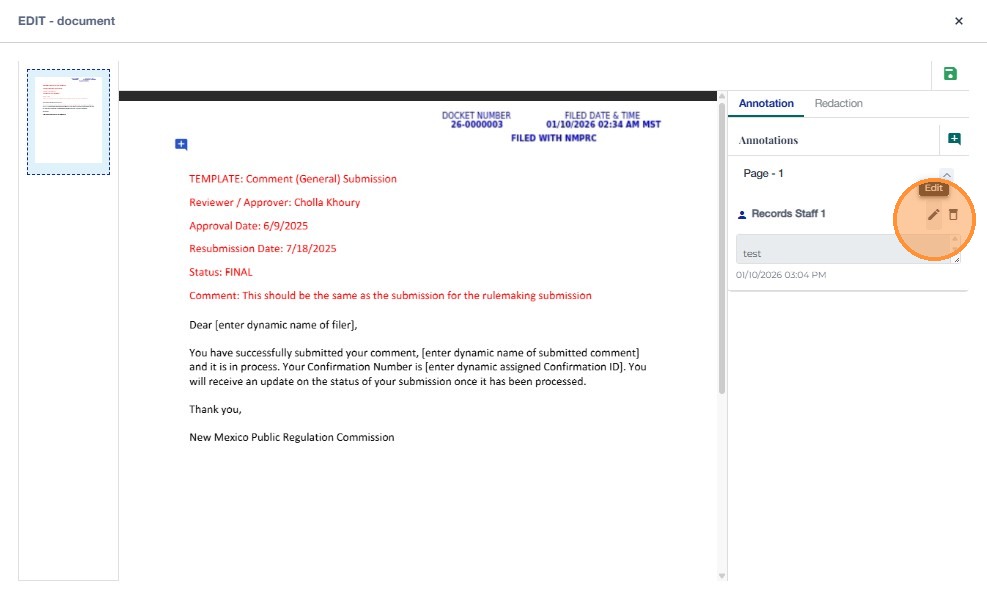
You can edit a saved annotation by using the Edit button.
Delete
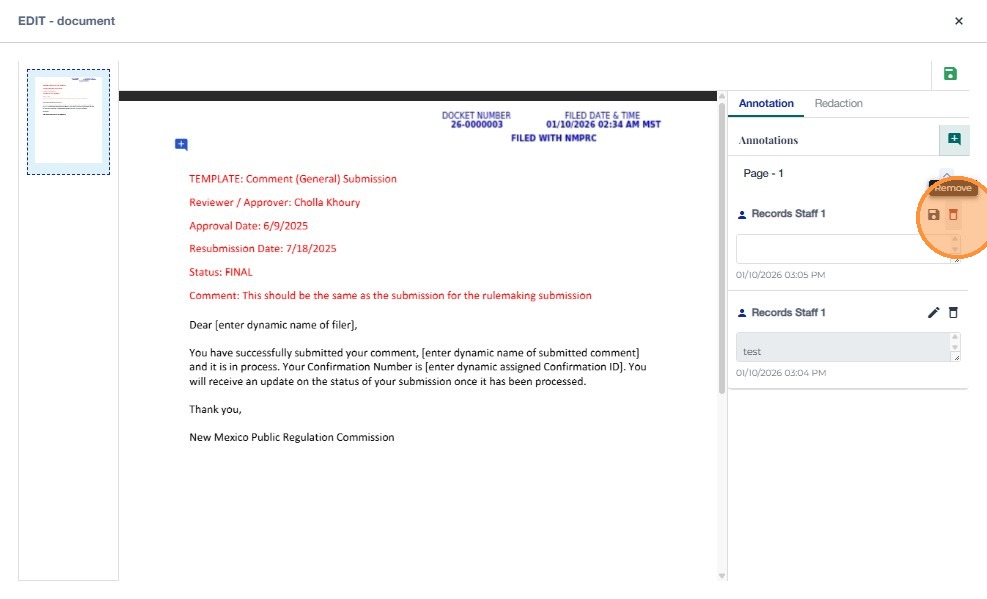
You can delete a saved annotation using the Remove button.
Redaction
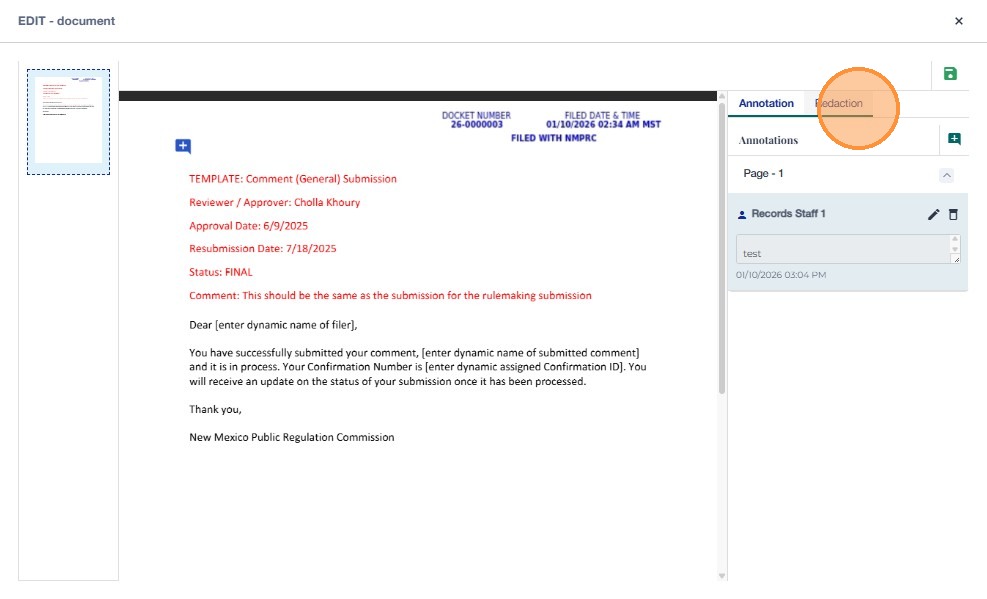
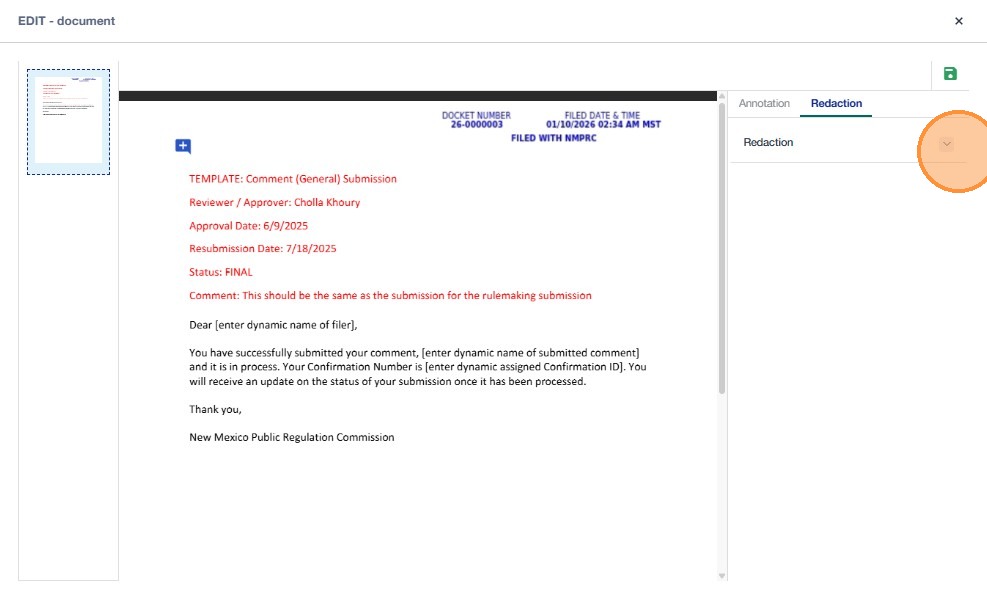
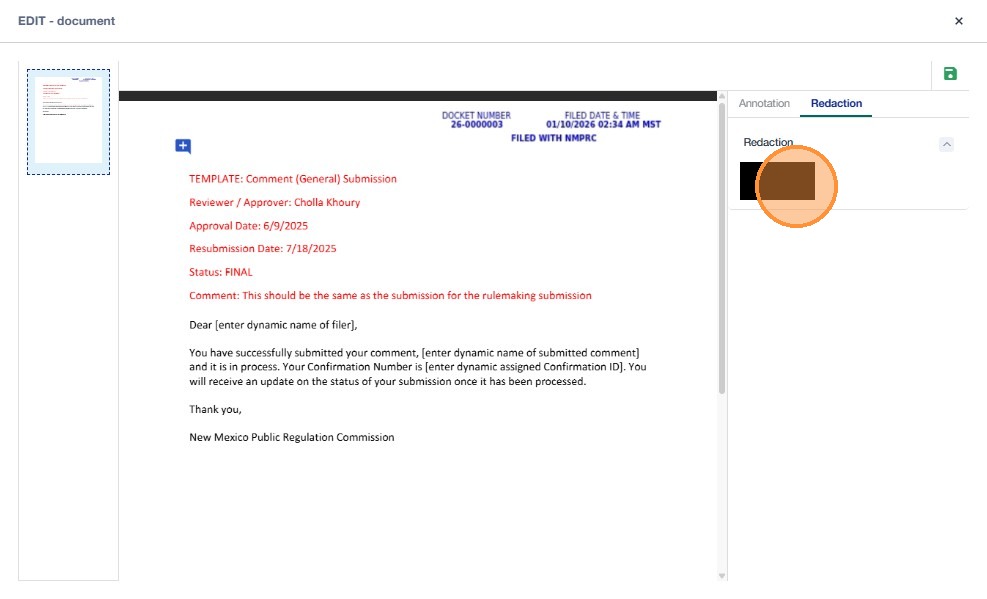
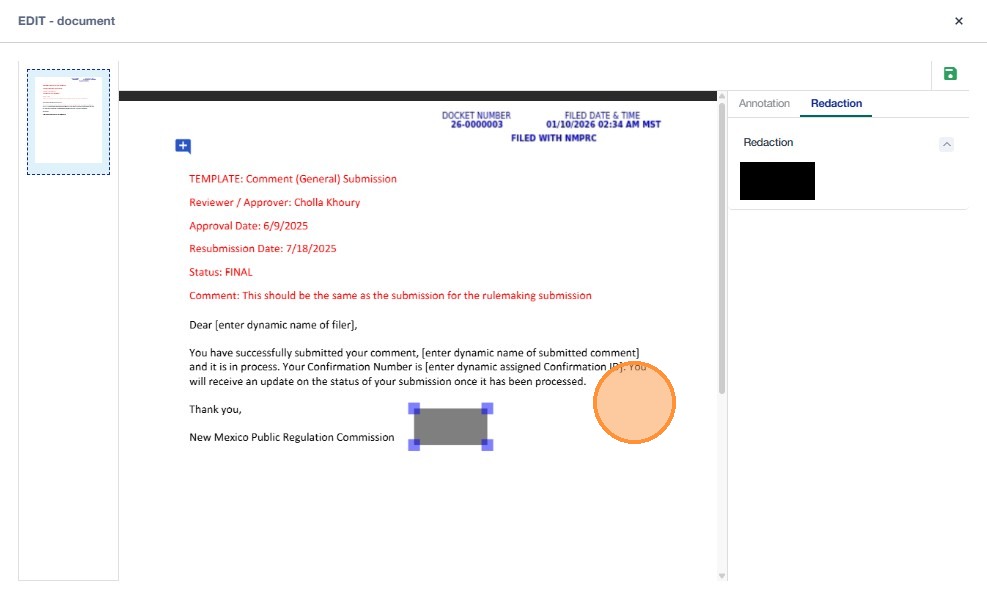
Click the Redaction tab and a black redaction block will appear.
Click the block to generate one on the document.
Drag the redaction block to the desired location to cover the information that you want to redact.
Save Changes
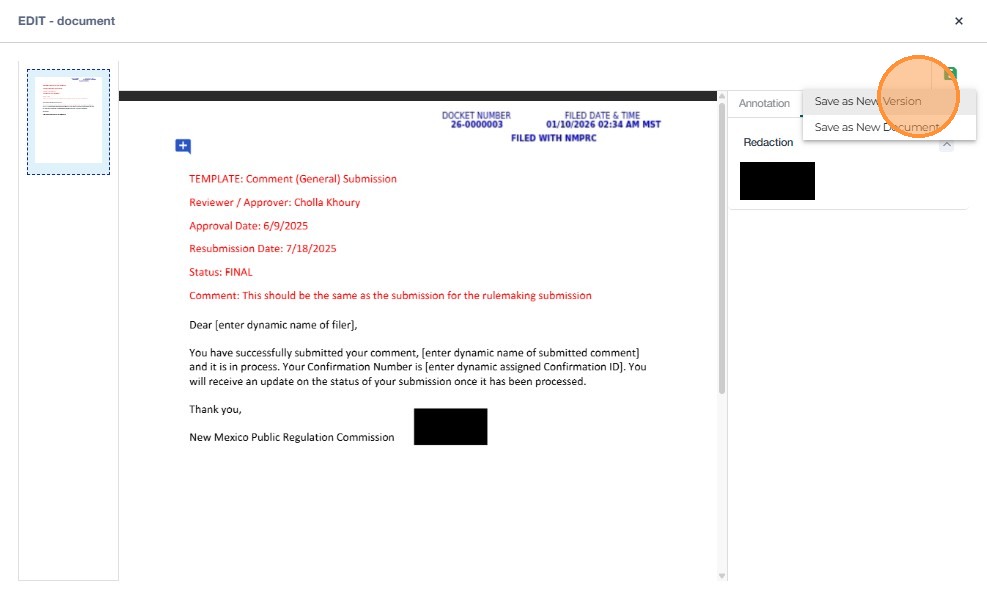
Click the Save icon in the top-right corner to save the changes. Two options will appear: Add Version and Save As.
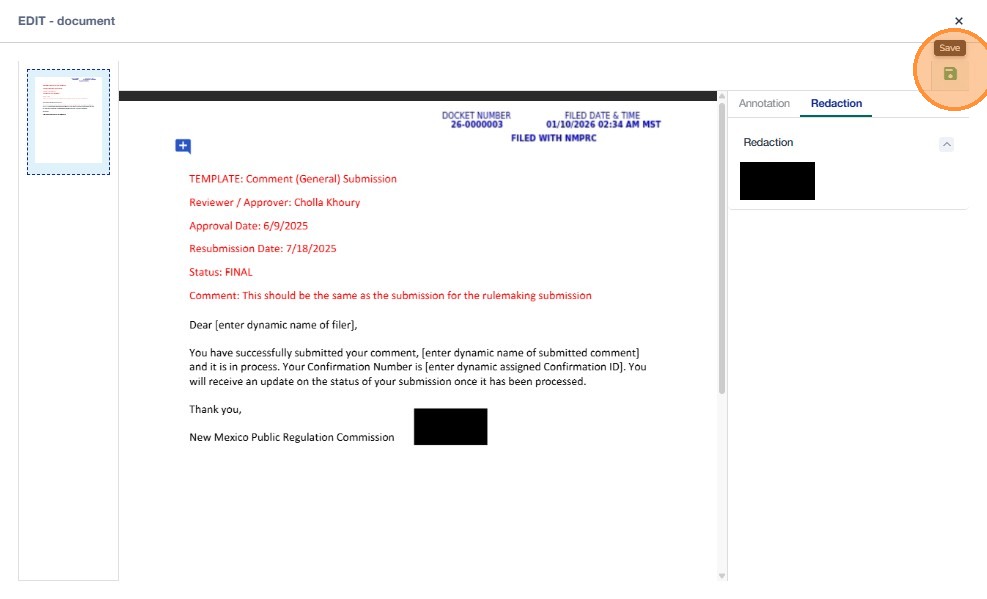
Add Version
If Add Version is selected, a new version of the document is saved.
Save As
If Save As is clicked, a popup will open asking for the Document Name and Access Type: Confidential or Non-Confidential.
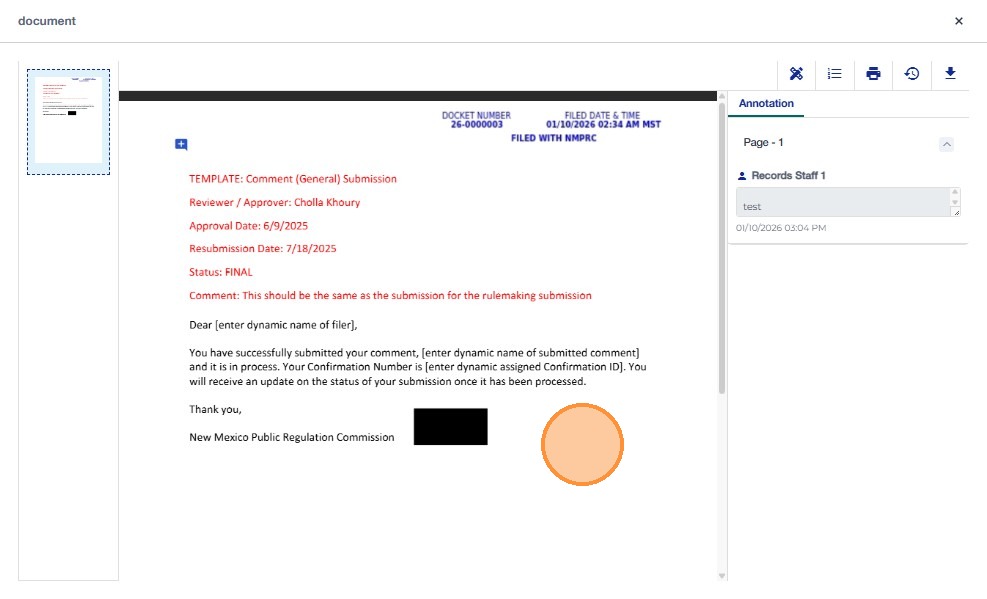
Document History
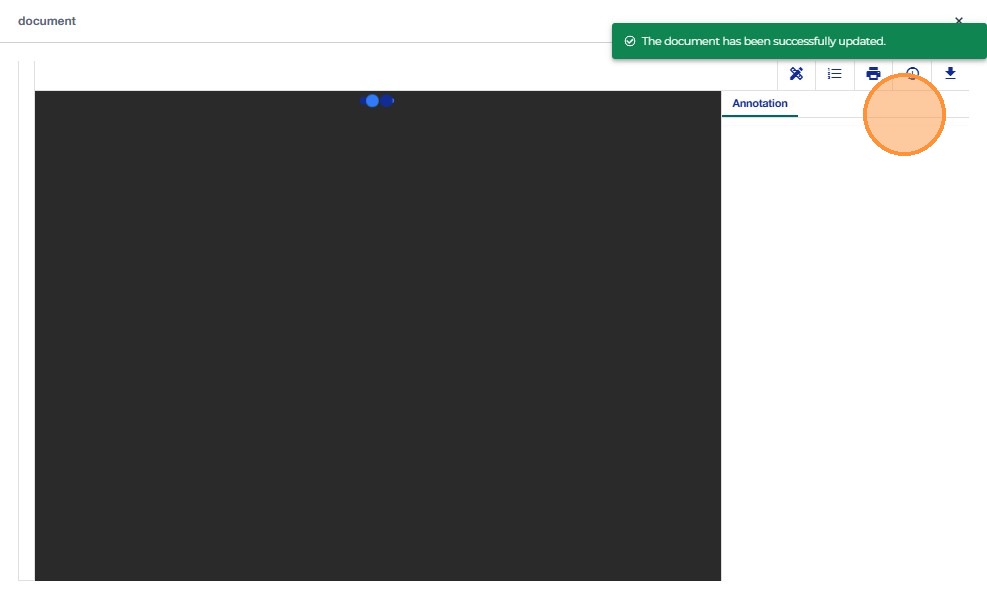
Document history can be viewed by clicking the History icon.
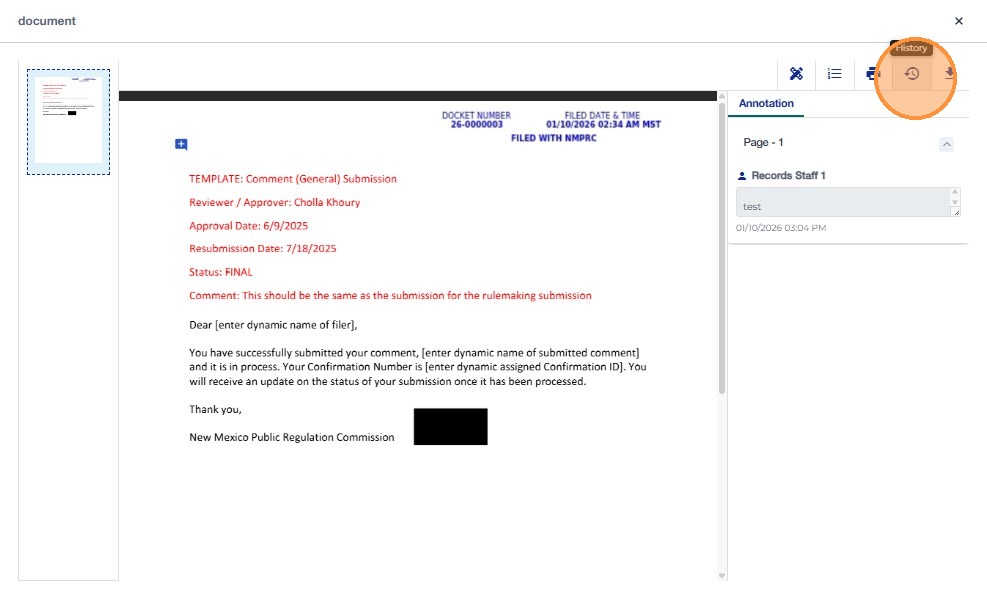
Click the icon, and it will display the log of changes made over time along with the user email who made the changes and the timestamp. The top entry indicates the current version.
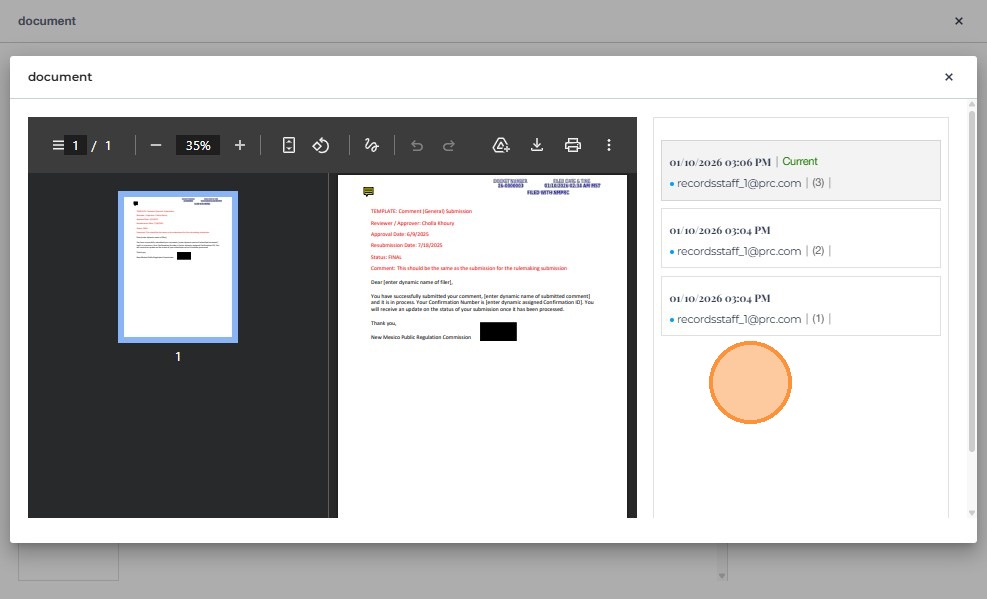
Restore Older Version of Document
Click any older version and a Restore button will be visible. Click this button to restore the previous version of the document.

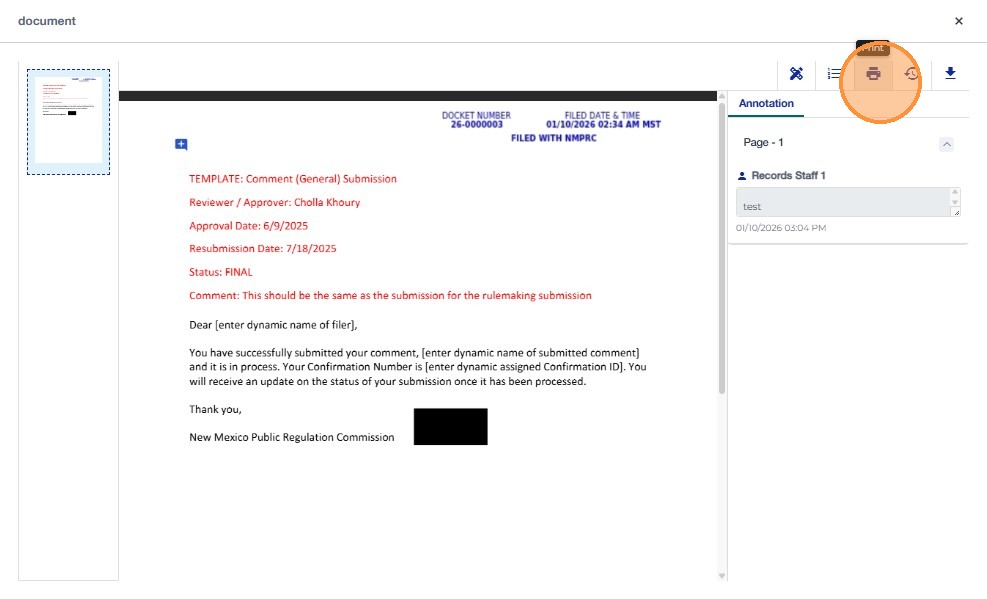
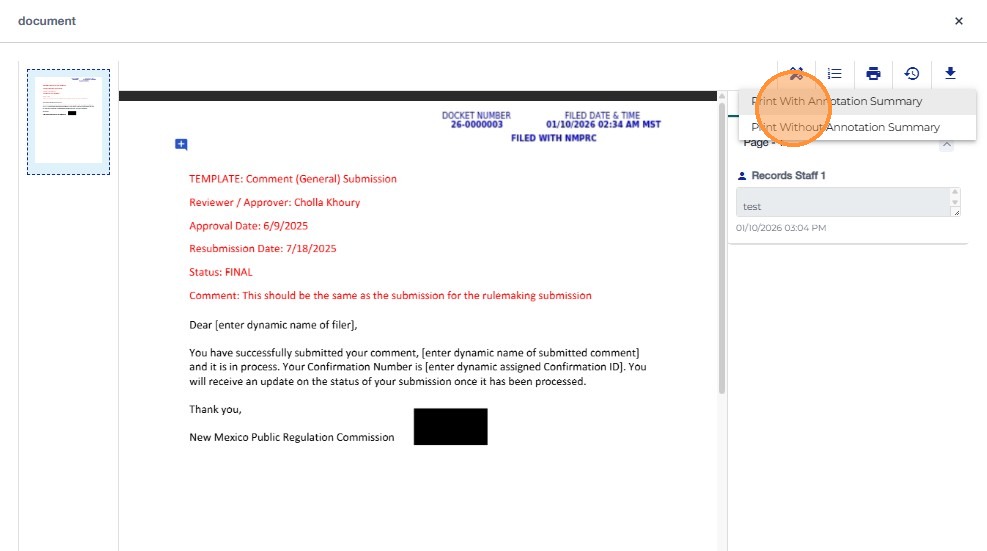
Print the document
If a user wants to print the document, Click on Print.
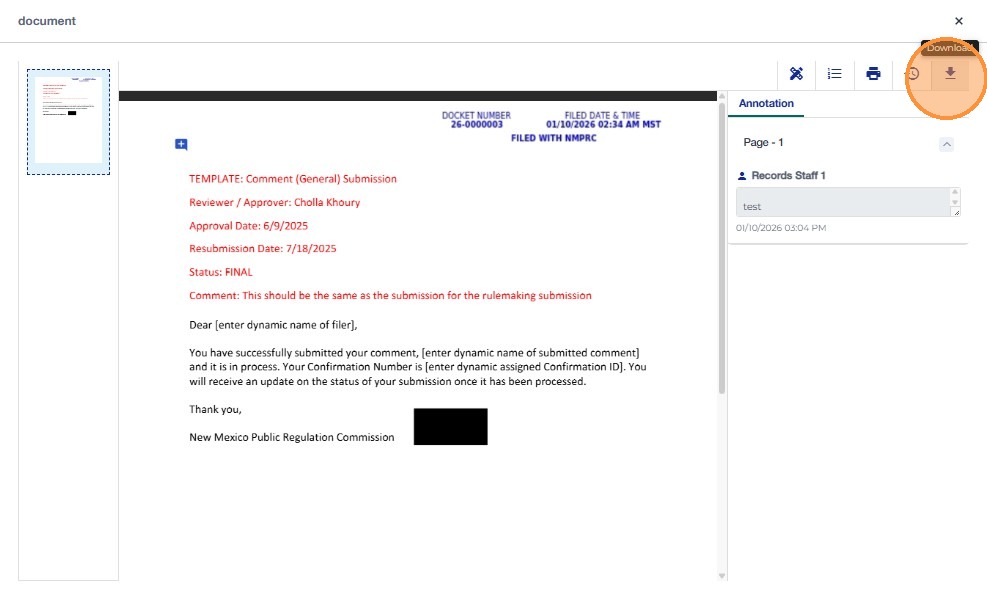
Download the document
If a user wants to download the document.Click on Download button.
Further Annotation or Redaction to a Document
If a user wants to add further annotations or redactions to an already annotated and redacted document, they can do so. However, they cannot edit or delete the annotations already added by the previous user.
They can add their new annotation and edit or remove only their own annotations.